How to Add a Chatbot to Your Website in Under an Hour
A practical walkthrough for adding a chatbot to your site in about an hour, with both no-code and code options and advice on keeping the scope small.
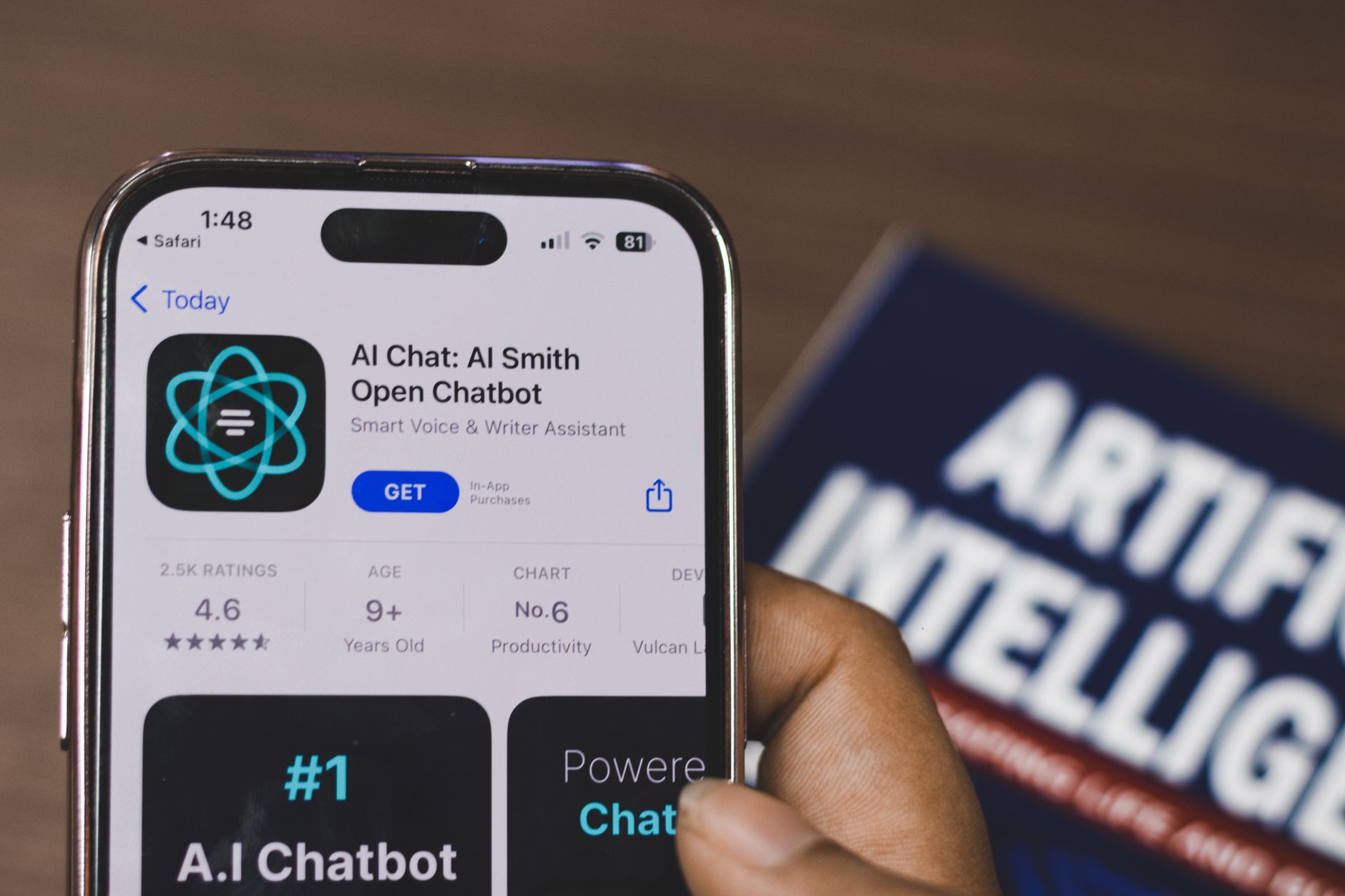
Most guides on how to integrate chatbots into your website assume you have a dev team, a budget, and a quarter to spare. You don't need any of that for a basic bot. What you need is about an hour, a clear job for the bot to do, and the discipline to keep the scope small.
This walkthrough splits into two tracks. One is for founders who want a working chatbot and zero code. The other is for developers who want to build something custom on top of an API. Pick one and follow it start to finish. And before you get too excited about the "under an hour" part: that promise covers a basic FAQ or lead-capture bot, not a fully trained AI agent with a custom knowledge base. More on that distinction later.
No-Code vs. Code: Which Path Fits You
Answer three questions before you open a single tab.
- How technical are you? If writing a script tag feels risky, take the no-code path. If you're comfortable with an API key and a terminal, the code path will give you more control in the same amount of time.
- How custom does this bot need to be? A bot that answers "what are your hours" and "where's my order" doesn't need a custom brain. A bot that needs to reason through your product catalog or pull live data from your CRM does.
- What's your actual timeline? If you need something live today, no-code wins every time. If you're building toward a bigger AI support system, code now saves you a rebuild later.
Founders and non-technical operators: skip to the no-code section. Developers who want a bot wired into your own stack: jump to the code section. Nobody gets extra credit for reading both.
The Under-an-Hour Checklist
The sequence is the same either way, no matter which path you take. Print this if you need to.
- Define the bot's one job. Support FAQs, lead capture, booking, or basic sales assist. Pick one.
- Choose no-code or code based on the questions above.
- Build the bot: template and content for no-code, widget and API call for code.
- Paste the embed snippet into your site, tag manager, or plugin.
- Test on desktop and mobile, and check what it does to your load time.
- Add a human handoff path, even a simple one.
- Publish, then watch the first real conversations for gaps.
Everything past this point is detail on how to execute one of these seven.
No-Code Path: Step-by-Step
This is the fastest route to a live chatbot, and it's genuinely fine for most small businesses. Plenty of these are free chatbot builders that need no coding at all, so you're not sacrificing much by skipping code here.
- Sign up for a platform. Tidio, Tawk.to, Crisp, Intercom, Drift, Freshchat, Landbot, ManyChat, Chatbase, and Zendesk all follow roughly the same pattern: create an account, verify your site, and land in a dashboard.
- Pick a template. Most platforms have a support-bot template and a lead-capture template. Start from one instead of a blank canvas. Blank canvases are where hours disappear.
- Feed it your content. Upload your FAQ page, help center articles, or a short list of common questions and answers. Platforms with AI-driven bots \(Intercom's Fin, Drift, Chatbase\) will use this to generate responses. Simpler rule-based bots \(Tawk.to, Crisp's free tier\) will use it to build decision trees.
- Customize the branding. Match your colors, set a name, write a greeting that doesn't sound like a robot wrote it. This takes ten minutes, not sixty.
- Grab the embed snippet. Every platform gives you a small script tag tied to your account ID. Copy it.
- Paste it into your site. Drop it before the closing body tag, or use your CMS's tag manager, or install the platform's WordPress or Shopify plugin if you'd rather avoid touching code at all.
Here's a quick way to compare chatbot development platforms before you commit. Confirm the current pricing on each vendor's site, since plans shift often.
- Tawk.to: Free, rule-based, live chat plus simple bot flows. Best for solo operators and tight budgets.
- Crisp: Free tier available, rule-based with some automation. Best for small teams that want live chat and a bot in one tool.
- Tidio: Free plan plus paid tiers with AI responses, easy setup. Best for small ecommerce stores.
- Landbot: No-code builder with visual flows, good for lead capture. Best for marketing-driven sites.
- ManyChat: Built around Messenger and Instagram as much as web. Best for social-heavy small businesses.
- Chatbase: AI-driven, trained on your own documents. Best for support-heavy sites that want smarter answers without writing code.
- Freshchat: Paid, AI-assisted, part of a larger helpdesk suite. Best for teams already using Freshworks.
- Intercom: Paid, strong AI bot \(Fin\), deep customer data integration. Best for growing SaaS companies.
- Drift: Paid, sales-focused conversational bot. Best for B2B lead qualification.
- Zendesk: Paid, AI bot tied into a full support platform. Best for companies that already run their support desk on Zendesk.
If you're shopping for the best AI chatbots for customer service this year, the AI-driven names on that list \(Fin, Chatbase, Freshchat\) are where to start. Free tiers almost always cap message volume, add the platform's branding to your widget, or limit integrations. That's the trade for zero cost, and it's usually a fine trade when you're starting out.
How to Integrate Chatbots Into Your Website: The Code Path
If you want a bot that reasons instead of just matching keywords, you're building on top of an LLM API. This takes more setup than the no-code route, but you get full control over behavior, tone, and what data the bot can see.
- Scaffold a chat widget. You can build this in plain HTML, CSS, and JavaScript, or use a React component if your site already runs React. At minimum you need a floating button, an expandable message panel, and an input field. Keep the first version ugly. Style it after it works.
- Connect it to an LLM API. OpenAI and Anthropic both offer straightforward chat completion endpoints. Your widget sends the user's message to your backend, your backend calls the API with that message plus a system prompt, and the response gets sent back to render in the widget.
- Write a system prompt that constrains the bot. Tell it what it knows, what it doesn't, and what to do when it's unsure \("I don't have that information, let me connect you with someone who does"\). This single paragraph does more to prevent embarrassing answers than any amount of testing.
- Add a knowledge base if you need grounded answers. For anything beyond generic chat, feed the model your own content through a vector store so it's answering from your docs instead of guessing. This step is the main reason a custom bot takes longer than an hour to do properly.
- Deploy your backend endpoint. A simple serverless function works fine for this. You don't need a dedicated server for a basic support bot.
- Embed the widget. Same pattern as the no-code tools: a script tag that loads your widget's JavaScript file, placed before the closing body tag. If you're using a framework like Rasa or Dialogflow instead of a raw LLM call, you'll wire up a webhook here instead of a direct API call, but the front-end embed step looks the same either way.
The embed pattern is worth understanding even if you never write it yourself, because it explains why these tools install so easily. Almost every chatbot widget, no-code or custom, is just an async script tag that injects an iframe or a piece of shadow-DOM UI into your page.
Adding a Human Handoff
Skip this step and you will regret it the first time a customer asks something the bot can't answer and gets stuck in a loop. Even a bare-bones handoff, a button that says "talk to a person" and opens an email draft or a support ticket, changes how the whole interaction feels. Without it, a chatbot reads like a wall you hit. With it, the bot reads like the first stop, not the only one.
This doesn't need to be sophisticated. A link to your support email counts. A live chat fallback counts. What matters is that the bot never leaves someone with nowhere to go.
Testing and Going Live
Before you call this done, run through it on both desktop and mobile. Bots that look fine on a laptop screen sometimes cover half a phone screen or block the checkout button. Check your page load speed too, since a heavy widget script can add real delay, especially on mobile connections.
Send it a few odd questions on purpose. Ask something outside its scope and see how it handles the gap. Then publish, and actually read the first batch of real conversations. That's where you'll find the questions your FAQ never covered and the phrasing that trips up your rule-based flows.
AI Chatbot vs. Traditional Support: What Actually Changes
A chatbot is not a replacement for your support team. It's a filter. The bot handles the repetitive stuff, order status, hours, return policy, pricing tiers, so your team only sees the questions that actually need a person. That's the whole point, and it's a good one, but it breaks down the moment you expect the bot to close every ticket on its own.
Traditional support waits for someone to open a ticket or dial a number. A chatbot is sitting on the page the second someone lands there, ready before they've decided whether their question is even worth an email. That shift, from reactive to available on arrival, is the actual improvement. The bot isn't smarter than a human. It just gets there first.
Small Business and Ecommerce Notes
If you run a store, the fastest wins for a chatbot are narrow and specific: order status lookups, product questions, and cart recovery messages when someone's about to bail at checkout. None of that requires a custom AI agent. Most of the platforms above have one-click app installs for Shopify and WooCommerce, which skips the manual snippet-pasting entirely.
Cart recovery in particular is worth setting up even if you do nothing else. A short bot message that pops up when someone hesitates at checkout, asking if they have questions about shipping or sizing, catches hesitation before it turns into an abandoned cart. It's a small addition with an outsized effect on conversion for the setup time it takes.
What "Under an Hour" Really Means
Be honest with yourself about which scenario you're actually in. A basic FAQ or lead-capture bot on a no-code platform, built from a template and your existing help content, is a real under-an-hour project. People do this in thirty minutes regularly.
A custom AI agent with a trained knowledge base, tested edge cases, and a properly tuned system prompt is a different project. That one takes days, not because the code is hard but because good grounding data and testing take time to get right. If you're building that, use this guide to get your first working version live fast, then plan to keep refining it over the following weeks.
Also watch the free-tier fine print. Message caps, mandatory platform branding on your widget, and limited integrations are how these tools get you to upgrade. None of that is a dealbreaker for a first version, but don't be surprised when you hit the ceiling in month two.
Wrap-Up
A live chatbot means faster answers for visitors and more captured leads for you, and that's true whether you spent an hour on a template or a week on a custom build. Pick your path, start the clock, and get something live today.
Ready to Automate? Book a Demo
See how AllBots AI voice agents can transform your business operations. Get a personalized demo tailored to your industry and use case.
Keep Reading

Setting Up Your First AI Voice Agent: A Step-by-Step Guide
Learn how to implement your first AI voice agent with this comprehensive tutorial covering planning, setup, integration, testing, and optimization.

Best AI Receptionists for Small Businesses in 2026
Compare the best AI receptionist solutions for small businesses in 2026. Pricing, features, and real-world performance from Smith.ai, AllBots, Dialzara, Goodcall, My AI Front Desk, and more.